Horizontal lines appearing on an Android phone screen can be frustrating and may make it difficult to use your device normally. These lines can appear as thin colored streaks, flickering bands, or permanent horizontal bars across the display. In some cases, the issue is caused by a simple software glitch, while in others, it may indicate a hardware problem that requires professional repair.
The good news is that many display issues can be diagnosed and sometimes fixed without immediately replacing the screen. In this guide, we’ll explain the common causes of horizontal lines on Android phones and provide practical solutions to help you resolve the problem.
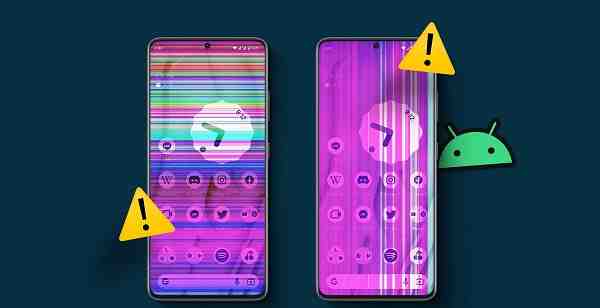
What Causes Horizontal Lines on an Android Phone?
Before attempting any repairs, it’s important to understand what may be causing the issue.
Common causes include:
- Software bugs or system glitches
- Faulty display drivers
- Physical screen damage
- Loose display connectors
- Water or moisture damage
- Overheating
- Defective display panels
- Recent drops or impacts
Identifying the root cause can help determine the best solution.
Restart Your Android Phone
A temporary software error can sometimes cause display abnormalities.
To restart your phone:
- Press and hold the Power button.
- Select Restart.
- Wait for the device to reboot.
After the restart, check whether the horizontal lines have disappeared.
This simple step often resolves temporary graphical glitches.
Check if the Lines Appear in Screenshots
One useful way to diagnose the issue is by taking a screenshot.
Steps:
- Capture a screenshot of the screen.
- Open the screenshot on another device.
If the lines appear in the screenshot:
- The issue may be software-related.
If the lines do not appear:
- The problem is likely related to the display hardware.
This test helps narrow down the source of the issue.
Boot the Device in Safe Mode
Some third-party apps may interfere with display performance.
To Enter Safe Mode:
- Press and hold the Power button.
- Touch and hold Power Off.
- Select Safe Mode when prompted.
Once in Safe Mode:
- Check whether the lines remain visible.
If the issue disappears, a recently installed app may be causing the problem.
You can uninstall suspicious or recently added applications to identify the culprit.
Update Android Software
System updates often include bug fixes and display-related improvements.
To Check for Updates:
- Open Settings.
- Select System or Software Update.
- Tap Check for Updates.
- Install any available updates.
After updating, restart the device and inspect the screen.
Many display issues are resolved through software patches.
Check for Overheating
Excessive heat can temporarily affect display performance.
Signs of overheating include:
- Device becoming unusually hot
- Reduced performance
- Screen flickering
- Unexpected shutdowns
If your phone is overheating:
- Remove the phone case.
- Stop running intensive applications.
- Allow the device to cool naturally.
- Avoid direct sunlight.
Once the temperature returns to normal, check whether the horizontal lines remain.
Inspect for Physical Damage
Carefully examine the phone for signs of damage.
Look for:
- Cracks in the display
- Dents on the frame
- Screen separation
- Impact marks
Even minor drops can damage internal display components without causing visible cracks.
Physical damage is one of the most common causes of persistent horizontal lines.
Remove Accessories and Screen Protectors
Although uncommon, damaged screen protectors can sometimes create visual distortions.
Try:
- Removing the screen protector.
- Cleaning the display.
- Restarting the phone.
If the lines disappear, replacing the protector may solve the issue.
Check for Water Damage
Moisture entering the device can affect display components.
Warning signs include:
- Screen discoloration
- Flickering lines
- Touchscreen issues
- Condensation under the display
If your phone has recently been exposed to water:
- Turn it off immediately.
- Do not charge it.
- Allow it to dry completely.
- Seek professional inspection if necessary.
Water damage can worsen over time if left untreated.
Reset Display Settings
Certain Android devices allow users to modify display settings.
Try resetting:
- Refresh rate settings
- Color modes
- Resolution settings
Returning to default display settings may resolve unusual screen behavior.
Perform a Factory Reset
If software issues are suspected and other methods fail, a factory reset may help.
Important:
Back up all important data before proceeding.
Steps:
- Open Settings.
- Select System.
- Tap Reset Options.
- Choose Factory Data Reset.
- Follow the on-screen instructions.
If the horizontal lines remain after a factory reset, the problem is likely hardware-related.
When Hardware Repair Is Needed
If none of the software solutions work, hardware damage may be the cause.
Common hardware issues include:
- Damaged OLED or LCD panel
- Loose display connector
- Faulty display controller
- Motherboard problems
These issues typically require professional diagnosis and repair.
When to Visit a Repair Center
You should seek professional help if:
- The lines appeared after a drop.
- The display flickers constantly.
- Touch functionality is affected.
- The issue worsens over time.
- The screen shows multiple colored lines.
- A factory reset does not solve the problem.
A technician can determine whether the display assembly or internal components need replacement.
Tips to Prevent Horizontal Lines in the Future
To protect your Android phone screen:
- Use a quality protective case.
- Install a tempered glass screen protector.
- Avoid exposing the phone to moisture.
- Keep software updated.
- Avoid overheating.
- Handle the device carefully.
Preventive maintenance can significantly extend the lifespan of your phone’s display.
Conclusion
Horizontal lines on an Android phone screen can result from software glitches, overheating, water exposure, display damage, or internal hardware faults. Fortunately, simple solutions such as restarting the phone, updating Android, booting into Safe Mode, or performing a factory reset may resolve software-related issues. However, if the lines persist after troubleshooting or appear following physical damage, professional repair may be necessary. By identifying the cause early and taking appropriate action, you can prevent further damage and restore your phone’s display functionality.
FAQs
Q: Why are horizontal lines appearing on my Android phone?
A: The issue may be caused by software bugs, screen damage, loose display connections, overheating, or water exposure.
Q: Can a software update fix horizontal lines?
A: Yes. If the issue is software-related, installing the latest Android update may resolve it.
Q: How do I know if the screen is damaged?
A: If the lines remain after restarting, updating, and resetting the phone, or if the device was recently dropped, screen damage is likely.
Q: Can overheating cause horizontal lines?
A: Yes. Excessive heat can temporarily affect display performance and cause visual artifacts.
Q: Will I need to replace the screen?
A: If the lines are caused by physical display damage or hardware failure, screen replacement may be required.